DB2 Replication Guide and Reference
Use the Define Subscription window to set up sources and targets to define
a basic replication subscription. See Navigating to Your Replication Objects with the Control Center to learn how to navigate to the Replication
Sources folder. Many of the fields in the Define Subscription
window accept both ordinary and delimited identifiers. These fields are
identified in the step. See Ordinary and Delimited Identifiers for more information.
To define a replication subscription:
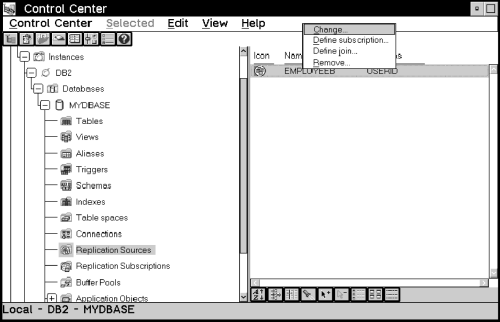
- Select the Replication Sources folder from the Control Center
as shown in Figure 20. The replication sources appear in the contents
pane.
Figure 20. The Replication Sources Folder with Objects and Actions
- Select one or more replication sources you want to define as sources for
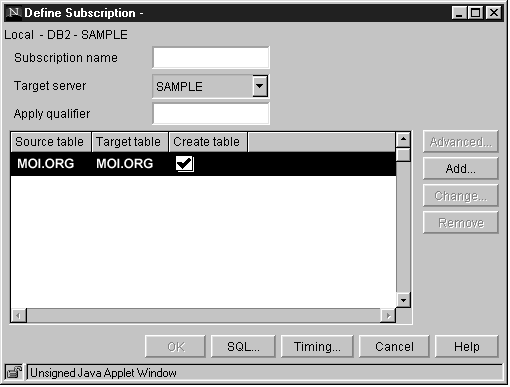
the replication subscription, and select Define subscription from the pop-up menu. The Define Subscription window opens,
as shown in Figure 21.
Figure 21. The Define Subscription Window
- Type a set name for the replication subscription in the Subscription
name field. The set name can be up to 18 characters and can be an
ordinary or delimited identifier; for example,
MYSUBSCRIPTION.
| Note: | The name of a subscription set consists of three parts: the control
server (CONTROL_SERVER), the apply qualifier (APPLY_QUAL), and the set name
(SET_NAME). The Subscription name field is used to assign
the set name.
|
- Specify the database where the target tables will reside in the
Target server field. The displayed default is the alias of
the source server. This value can be an ordinary or delimited
identifier; for example, MYDBASE.
- Specify a character string associating this replication subscription with
a unique instance of the Apply program in the Apply qualifier
field. This value can be an ordinary or delimited identifier and must
be in uppercase; for example, MYAPPLY.
| Note: | The value entered in the Apply qualifier field will need to be
used when the Apply program is invoked.
|
- If you want to change the name of the target table, click on the name in
the Target table field and then click on Change.
In the Change dialog window, enter the target table name. You can
repeat this step for each target table in the list box. This value can
be an ordinary or delimited identifier.
- Specify whether to create the target table by selecting the Create
table check box for every target table that you want to create when you
subscribe.
See Defining a Replication Subscription with a User-Defined Target Table for more information about this option.
To have the target tables created automatically, select the View->
Tools Setting menu choice from the Control Center. In the
Tools Setting notebook, select the Replication page, and
select the Create target tables check box.
- If you want to customize the target table structure, enhance any data, or
specify the timing for the replication subscription, go to Defining Replication Sources: Advanced Tasks.
- Complete the subscription definition.
- Click on OK to save the values and close the window. The
Subscription Information window opens as shown in Figure 22.
Figure 22. The Subscription Information Window. Use this window to enter the control server name and specify whether to run now or save the SQL to a file
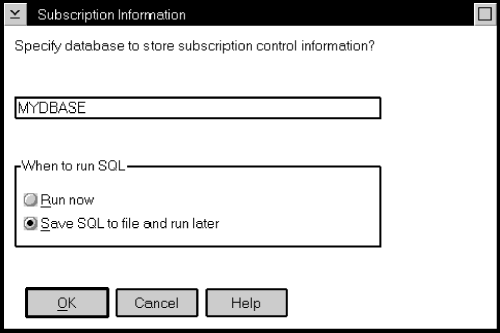
- To specify the control server database, enter the database name in the
Specify database to store subscription control information
field.
| Attention: | You can specify an Apply qualifier for the control server while defining the
first replication subscription that uses the control server. This Apply
qualifier will remain associated with the control server until the last
subscription with the Apply qualifier is removed. See The Control Server for more information about the Apply qualifier and the
control server and how to identify them.
|
- Specify whether to submit the replication request now or save the SQL
statements generated by the action in a file to be run later.
- After you submit the request, verify that the replication subscription was
created by selecting the Replication Subscription folder in the
object tree and selecting the Refresh menu choice.
- If you defined an event to start the Apply program, populate the event
table. See the "Scheduling Subscriptions with the Event Table" section
in the Capture and Apply chapter for your platform in this book.
- To begin replicating data to the target tables, start the Apply program
using the name of the control server you specified on the Subscription
Information window. See the Capture and Apply chapter for your platform
to learn more about the Apply program.
[ Top of Page | Previous Page | Next Page | Table of Contents | Index ]
[ DB2 List of Books |
Search the DB2 Books ]