
This step is not required on AIX. If you are installing an AIX
client, skip this step and go to Step 2. Mount the DB2 Client Application Enablers CD-ROM.

To install the DB2 Client Application Enabler on AIX, HP-UX, SCO UnixWare 7, Silicon Graphics IRIX, and Solaris systems, perform the following steps:
To run DB2 Client Application Enabler for UNIX systems, you may have to
update some kernel configuration parameters.
|
|
This step is not required on AIX. If you are installing an AIX
client, skip this step and go to Step 2. Mount the DB2 Client Application Enablers CD-ROM.
|
Table 13 lists the recommended values for the specified HP-UX kernel
configuration parameters. These values are valid for HP-UX 10 and HP-UX 11.
Table 13. HP-UX Kernel Configuration Parameters (Recommended Values)
| Kernel Parameter | Recommended Value |
|---|---|
msgseg msgmnb msgmax msgssz |
8192 65535 (1) 65535 (1) 16 |
Notes:
To change a value:
The HP-UX operating system automatically reboots after you change the values for the kernel configuration parameters.
|
|
Go to Step 2. Mount the DB2 Client Application Enablers CD-ROM to continue with the installation.
|
Table 14 lists the recommended values for the specified SCO UnixWare
7 kernel configuration parameters.
Table 14. SCO UnixWare 7 Kernel Configuration Parameters (Recommended Values)
| Kernel Parameter | Recommended Value |
|---|---|
msgmax msgmnb msgssz msgmni |
65535 (1) 65535 (1) 524288 256 |
Notes:
To change a value, do the following:
|
|
Go to Step 2. Mount the DB2 Client Application Enablers CD-ROM to continue with the installation.
|
Table 15 lists the recommended values for the specified Solaris
kernel configuration parameters.
Table 15. Solaris Kernel Configuration Parameters (Recommended Values)
| Kernel Parameter | Recommended Value |
|---|---|
msgsys:msginfo_msgmax msgsys:msginfo_msgmnb msgsys:msginfo_msgseg msgsys:msginfo_msgssz |
65535 (1) 65535 (1) 8192 16 |
Notes:
To set a kernel parameter, add a line at the end of the /etc/system file as follows:
set parameter_name = value
where parameter_name represents the parameter you want to change.
For example, to set the value of parameter msgsys:msginfo_msgmax, add the following line to the end of the /etc/system file:
set msgsys:msginfo_msgmax = 65535
After changing the kernel
parameters, reboot the system so that the changes can take effect.
|
|
Go to Step 2. Mount the DB2 Client Application Enablers CD-ROM to continue with the installation.
|
To install DB2 Client Application Enabler using the DB2 Installer, you must first mount the CD-ROM. Once you have mounted the CD-ROM, you can start installing the DB2 products.
Perform the following steps to mount the CD-ROM on AIX operating systems:
mkdir -p /cdrom
where cdrom is the CD-ROM mount directory.
smitty storage
 |
Device names for CD-ROM file systems must be unique. If there
is a duplicate device name, you may need to delete a previously-defined
CD-ROM file system or use another name for your directory.
|
smit mountfs
|
|
Go to Step 3. Perform the Installation to continue with the installation.
|
Perform the following steps to mount the CD-ROM on HP-UX operating systems:
    mkdir /cdrom
    /usr/sbin/mount /dev/dsk/c0t2d0 /cdrom
where /cdrom is the CD-ROM mount directory.
|
|
The CD-ROM may also be mounted using the System Administration
(SAM) tool. Consult your HP-UX documentation for more
information about SAM.
|
|
|
Go to Step 3. Perform the Installation to continue with the installation.
|
Perform the following steps to mount the CD-ROM on SCO UnixWare 7 operating systems:
mount -F cdfs -o ro /dev/cdrom/c0b0t5l0 /cdromwhere c0b0t5l0 is the device name found under /dev/cdrom directory and varies with the particular hardware on the system.
|
|
Go to Step 3. Perform the Installation to continue with the installation.
|
Perform the following steps to mount the CD-ROM on Silicon Graphics IRIX operating systems:
mount -t iso9660 device mount_point
For example, to mount the CD-ROM as /cdrom, enter the following commands:
   mkdir /cdrom
   mount -t iso9660  /dev/scsi/sc0d7l0 /cdrom
|
|
Go to Step 3. Perform the Installation to continue with the installation.
|
Perform the following steps to mount the CD-ROM on Solaris operating systems:
   mkdir -p /cdrom/unnamed_cdrom
   mount -F hsfs -o ro /dev/dsk/c0t6d0s2 /cdrom/unnamed_cdrom
where /cdrom/unnamed_cdrom is the CD-ROM mount directory.
|
|
If you are mounting the CD-ROM drive from a remote system using NFS, the
CD-ROM file system on the remote machine must be exported with root
access. You must also mount that file system with root
access on the local machine.
|
If the Volume Manager (vold) is running on your system, the CD-ROM is automatically mounted as:
/cdrom/unnamed_cdrom
|
|
Go to Step 3. Perform the Installation to continue with the installation.
|
After you mount the CD-ROM file system, use the
DB2 Installer program to install the DB2 products.
./db2setup
cd /cdrom/db2/aix
   cd /cdrom/db2/hpux10 (for HP-UX Version 10)
   cd /cdrom/db2/hpux11 (for HP-UX Version 11)
cd /cdrom/db2/scouw
cd /cdrom/db2/sgi
cd /cdrom/unnamed_cdrom/db2/solaris
   cd /cdrom
   ./db2setup
The installation program will proceed to install the appropriate client on
your workstation.
|
|
It will take some time for the DB2 Installer program to start up, as it is
scanning your system for information.
|
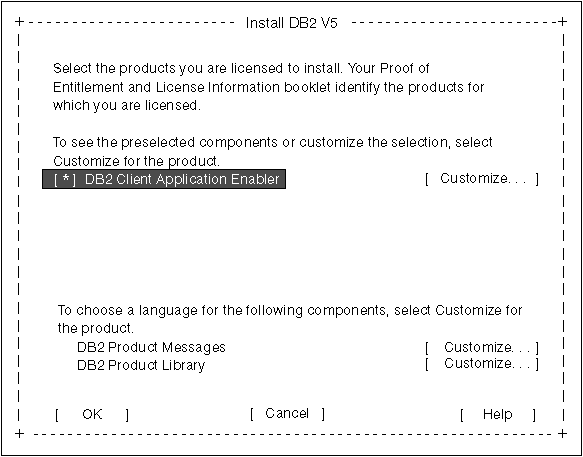
| Note: | Your screen will be different if you have already installed DB2 Version 5 products on your system. See Chapter 4. Installing Additional Products and Creating Additional Instances for more information. |
To display the required and optional components for a product that you want
to install, select Customize. The optional components that
are most typically used are pre-selected for you.
|
|
To refresh the current screen, press the F5 key or Ctrl+L.
|
When you have finished your selection, select OK. To undo
any selections you made, select Default. The Create DB2
Services window opens.
|
|
Go to step 9 if you do not want to create a DB2 Instance at this
time.
|
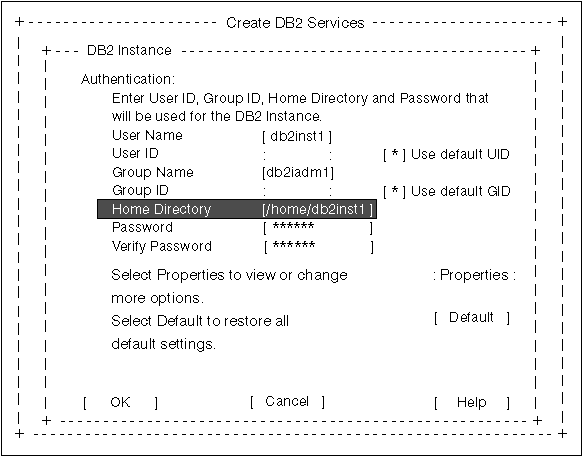
You can use the default values displayed at the DB2 Instance window or change them. To change the default User ID for the instance, deselect Use default UID and enter a new value for the User ID.
After the installation is complete, the software is installed in the
DB2DIR directory,
|
| where DB2DIR | = /usr/lpp/db2_05_00 | on AIX |
|
|
| = /opt/IBMdb2/V5.0 | on HP-UX, SCO UnixWare 7, SGI IRIX, or Solaris |
|
| Proceed to Chapter 14. Configuring Client-to-Server Communications Using the Command Line Processor. |