
DB2 Replication Guide and Reference
To define a replication source, use the Control Center Object Tree to
navigate to the Tables folder. The Define as replication source pop-up menu choice allows you to define a table object as a
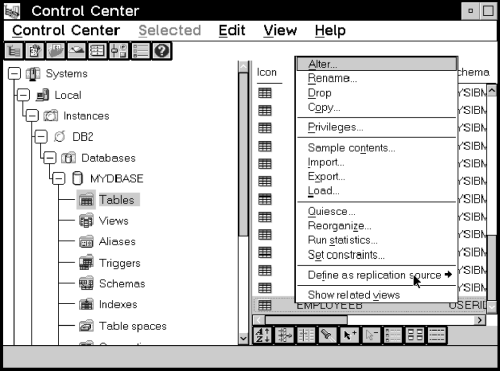
replication source. Figure 17 shows the pop-up menu for the table object and the
Define as replication source menu choice.
Figure 17. The Table object pop-up menu. The Table object pop-up menu contains the Define as Replication Source menu action.
You can define replication sources using the Quick or
Custom pop-up menu choices. Quick allows you to
define a replication source using the defaults set in place.
Custom allows you to customize the defaults, such as specifying any
columns that should not be captured for update replication.
When you finish defining the source, you can select whether to run the SQL
that defines the source, or defer and run the file later. When you run
the SQL file to define the source, an object is created in the
Replication Sources folder. The table can now be defined in
a subscription set.
For data restrictions when defining replication sources and targets, see Data Restrictions.
Use the Define as Replication Source -> Quick menu choice,
available from a table object on the right side (contents pane) of the Control
Center, to define tables as sources for replication using the default
values.
To define a default replication source with the Quick menu
choice:
- Check the default settings in the Tools Settings notebook on the
Replication page. See Setting Replication Preferences in the DB2 Tools Settings Notebook for a list of the setting defaults and instructions for
opening the notebook and changing the settings.
Additional default values can be changed only by using the
Custom menu choice and selecting choices on the Define as
Replication Source window.
- All source columns are available for data capture.
- Partition key columns are captured as UPDATE statements by the Capture
program.
- If the source table will be used in update-anywhere replication, conflict
detection is STANDARD.
If these default values are not acceptable for your application, go to Defining a Custom Replication Source.
- In the Control Center, navigate to the Tables folder in the
source database and select it. The tables in the source database are
displayed on the right side of the window contents pane.
- From the contents pane, click mouse button 2 on the source table icon and
select the Define as Replication Source -> Quick menu choice to
launch the definition of the source. The Run Now or Save SQL window
opens. Specify whether to submit the replication request now or save
the SQL statements generated by the action in a file to be run later.
See Customizing and Running Replication SQL Files to learn how to submit the request now or later.
- After you submit the request, verify that the replication source was
created by selecting the Replication Sources folder in the object
tree and selecting the Refresh menu choice.
- To begin capturing changes to the source table, start or reinitialize the
Capture program. See the Capture and Apply chapter for your platform in
this book for more information about the Capture program.
Use the Define as Replication Source window to identify tables that are
available as sources for replication.
To define a custom replication source with the Custom menu
choice:
- Check the default settings in the Tools Settings notebook on the
Replication page. See Setting Replication Preferences in the DB2 Tools Settings Notebook for a list of the settings defaults and to learn how to open
the notebook and change the settings.
- In the Control Center, navigate to the Tables folder in the
source database and select it. The tables in the source database are
displayed on the right side of the window contents pane.
- From the contents panel, click mouse button 2 on the source table icon and
select Define as Replication Source -> Custom to open the Define as
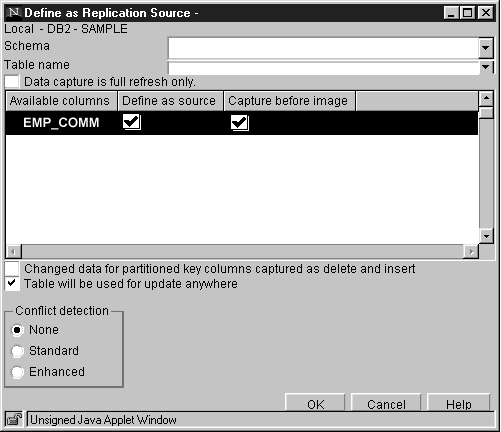
Replication Source window, as shown in Figure 18.
Figure 18. The Define as Replication Source window. The Define as Replication Source window is used to define replication sources.
- If you want to specify that the Capture program will not capture changes
to the source table and that the source data will be available for refresh
copying, select the Data capture is full refresh only check
box.
- If you want to make a column unavailable for replication, clear the
Define as source check box for that column. When cleared,
the column name becomes unavailable as a source column while defining a
replication subscription and cannot be replicated.
Define as source is automatically selected if the Table
will be used for update anywhere check box is selected.
- If you do not want to capture the before image of a column, clear the
Capture before image check box for that column. The after
image is always replicated.
This check box is selected automatically when the Table will be used
for update anywhere check box is selected.
- If you want support for logical partition keys, select the Changed
data for partitioned key columns captured as delete and insert check
box. The Capture program treats updates to primary key columns as
INSERT and DELETE statements, rather than UPDATE statements.
For before- and after-image columns, updates are turned into deletes of the
before-image column values, followed in sequence by inserts of the after-image
values. Within the context of the generated DELETE change row, all
before-image and after-image columns have the before-image values of the
update. Within the context of the generated INSERT change row, all
after-image columns have the after-image values of the update.
- If the source table might be used for update-anywhere replication:
- Select the Table will be used for update anywhere check
box.
When you select this check box, the Conflict detection choices
are enabled. If you do not select the Table will be used for
update anywhere check box, the conflict detection level default is
None.
- Select a level of conflict detection.
- None
- Select None if you do not want any conflict detection.
| Attention: | Conflicting updates between the source table and the replica will
not be detected.
|
- Standard
- Select Standard if you want moderate conflict detection in
which the Apply program searches rows already captured in the replica's
change data tables for conflicts. Standard detection is the default
value.
- Enhanced
- Select Enhanced for conflict detection that provides the best
data integrity among all replicas and the source table. The Apply
program locks all replicas in the subscription set against further
transactions, and begins detection after all changes prior to the locking have
been captured.
See Conflict Detection for more information about conflict detection.
- Select OK to save the values and close the window. The
Run Now or Save SQL window opens. Specify whether to submit the
replication request now or save the SQL statements generated by the action in
a file to be run later. See Customizing and Running Replication SQL Files to learn how to submit the request now or later.
- After you submit the request, verify that the replication source was
created by selecting the Replication Sources folder in the object
tree and selecting the Refresh menu choice.
- To begin capturing changes to the source table, start or reinitialize the
Capture program. See the Capture and Apply chapter for your platform in
this book for more information about the Capture program.
[ Top of Page | Previous Page | Next Page | Table of Contents | Index ]
[ DB2 List of Books |
Search the DB2 Books ]