
Installing and Configuring DB2 Clients
This section describes how to configure a client workstation to communicate
with a DB2 server using the APPC communication protocol, and assumes that APPC
is functional on the client and DB2 server workstations. See Software Requirements for the communication protocol requirements for your
platform. See Possible Client-to-Server Connectivity Scenarios for the supported communication protocols for your
particular client and server.

|
You need to ensure that the DB2 server that you are attempting to establish
communications with supports APPC clients. APPC client communications
are supported by the following DB2 servers:
- AIX
- OS/2
- Solaris
- Windows NT
For more information, see Software Requirements.
|
The following steps are required to set up a client to use APPC
communications:
- Identify and record parameter values.
- Configure the client:
- Update the APPC profiles.
- Catalog the APPC node.
- Catalog the database.
- Test the connection between the client and server.
As you proceed through the configuration steps, complete the
Your Value column in the following table. You can fill in
some of the values before you start configuring this protocol.
Table 19. APPC Values Required at the DB2 Client
| Parameter
| Description
| Sample Value
| Your Value
|
| Symbolic destination name (sym_dest_name)
|
Specifies the name of the CPI-C profile defined in APPC on the
client. This profile contains information that allows the client to
communicate with the server.
This profile name is used by DB2 as a link into the APPC communications
subsystem on your client. Obtain this name from your APPC System
Administrator or your APPC management tools.
| NYSERVER
|
|
| Security type (security_type)
| Specifies the type of APPC security to be used for the connection.
It is recommended that you use the security level none for the APPC
connection. If you do not specify this parameter in B. Catalog the APPC Node, the default program is used.
| none
|
|
| Node name (node_name)
|
A local alias, or nickname, that describes the node where the database
resides. You can choose any name you want, however, all node name
values within your local node directory must be unique.
| db2node
|
|
The following steps describe how to configure this protocol
on the client. Replace the sample values with your worksheet
values.
You must update the APPC communication profiles before your
client can access a DB2 server. Use the provided worksheet to help you
track values when updating the APPC profiles for your particular
client.
Table 20. APPC Values Required at the Client
| No.
| Description
| Sample Value
| Your Value
|
| Network Connection Information at the DB2 Client
|
| (13)
| Partner node name
| NYX1
|
|
| (14)
| Type
| Token-ring
|
|
| (15)
| Connection name
| LINKNYX1
|
|
| (16)
| LAN Destination Address
| 40005AA8B532
|
|
| (17)
| Partner network ID
| SPIFNET
|
|
| (18)
| Partner LU name
| NYX1GW01
|
|
| Network Elements at the DB2 Client
|
| (19)
| Network name
| SPIFNET
|
|
| (20)
| Local node name (same as the Control Point name)
| NYX2
|
|
| (21)
| Local node ID
| 05D27510
|
|
| (22)
| Partner LU fully-qualified LU name
| SPIFNET.NYX1GW01
|
|
| (23)
| Symbolic destination name
| NYSERVER
|
|
| (24)
| Partner TP name
| NYSERVER
|
|
| (25)
| Security type
| NONE
|
|
| (26)
| Mode name
| IBMRDB
|
|
| (27)
| Local LU name
| NYX2GW01
|
|
| Note: | Numbers (1) to (12) are reserved for server usage.
|
|

|
Go to the section that describes that required steps to update the APPC
profiles for the client that you want to use to communicate with you DB2
server.
|
You need to customize the APPC configuration for the client. The
following list gives the APPC profiles that you will need to update on your
client workstation before you can access a DB2 server using APPC.
- Control Point Profile
- Token Ring SNA DLC Profile
- Token Ring Link Station Profile
- LU 6.2 Mode Profile
- Partner LU 6.2 Location Profile
- LU 6.2 Side Information Profile
Samples of the profiles are provided. A field that has been changed
with the default value has been marked with a number in parentheses in each of
the sample profiles.
A worksheet is provided on Table 20. Each of the values marked with numbers in
parentheses in the following samples are included in the corresponding
worksheet. Use the worksheets to record the values of parameters that
you need to provide when you create or modify a profile.
Configure your DB2 Connect system as follows:
- Log on to the AIX machine as root.
- On the command line, enter:
smit
- Select panels in the following order:
- Communications Applications and Services
- SNA Server/6000
- Configure SNA Profiles
- Advanced Configuration.
The next several steps begin from the Advanced Configuration panel.
- Update the Control Point Profile as follows:
- Select the Control Point panel.
- Select the Change/Show a Profile panel.
- Between the square brackets [ ], enter the value of the XID
node ID (21).
The control point name was probably set when the SNA Server for AIX was
installed. (20).
To minimize confusion, use the same value for the control point alias as
for the control point name.
For example, the panel could look like this:
              Change / Show Control Point Profile

 *Profile name                                node_cp
  XID node ID                                [05D27510]       (21)
  Network name                               [SPIFNET]        (19)
  Control Point (CP) name                    [NYX]            (20)
  Control Point alias                        [NYX2]           (20)
  Control Point type                          appn_end_node
  Maximum number of cached routing trees     [500]
  Maximum number of nodes in the TRS database[500]
  Route addition resistance                  [128]
- Check the Token Ring SNA DLC Profile as follows:
- Select the Links panel.
- Select the Token Ring panel.
- Select the Token Ring SNA DLC panel.
- Select the Change/Show a Profile panel.
- The profile name and data link device name were probably set when SNA
Server for AIX was installed. If you have a reason to change these
values, you can do so. If no values appear in the profile, talk to your
LAN administrator.
Write down the profile name.
For example, the profile might look like this:
               Add Token Ring SNA DLC Profile

 *Profile name                                 [tok0.00001]
  Data link device name                        [tok0]
  Force disconnect time-out (1-600 seconds)    [120]
  User-defined maximum I-Field size?           no
     If yes, Max. I-Field size (265-30729)     [30729]
- If you will use APPC for connections from remote clients, make sure that
the profile has the following value:
Dynamic link stations supported? yes
- Create a Mode Profile as follows:
- Select the Sessions panel.
- Select the LU 6.2 panel.
- Select the LU 6.2 Mode panel.
- Select the Add a Profile panel.
- Define your mode profile. For profile name and mode name, use the
value that you wrote in item (26) of the worksheet. On the other
lines, specify values that match the mode profile defined on your DRDA server
systems. If you are using the mode IBMRDB, specify the following
values:
 *Profile name                                      [IBMRDB] (26)
  Mode name                                         [IBMRDB] (26)
  Maximum number of sessions (1-5000)               [30]     (*)
  Minimum contention winners (0-5000)               [15]     (*)
  Minimum contention losers (0-5000)                [15]     (*)
  Auto activate limit (0-500)                       [0]
  Upper bound for adaptive receive pacing window    [16]
  Receive pacing window (0-63)                      [8]      (*)
  Maximum RU size (128,...,32768: multiples of 32)  [4096]   (*)
  Minimum RU size (128,...,32768: multiples of 32)  [1024]   (*)
  Class of Service (COS) name                       [#CONNECT]
- Create a Local LU profile as follow:
- Select the Sessions panel.
- Select the LU 6.2 panel.
- Select the LU 6.2 Local LU panel.
- Select the Add a Profile panel.
- Update the three lines with the following value: Use (27) for
the all three lines. For example, the file could look like this:
               Add LU 6.2 Local LU Profile

 *Profile name                                   [NYX1GW02]   (27)
  Local LU name                                  [NYX1GW02]   (27)
  Local LU alias                                 [NYX1GW02]   (27)
  Local LU is dependent?                          no
     If yes,
        Local LU address (1-255)                 []
        System services control point
            (SSCP) ID (*, 0-65535)               [*]
        Link Station Profile name                []
  Conversation Security Access List Profile name []
You need to customize the APPC configuration
for the client. The following list gives the APPC profiles that you
will need to update on your client workstation before you can access a DB2
server using APPC.
- Link Service
- Connection Service
- Local Node Service
- APPC Mode
- APPC Remote LU
- APPC Local LU
- CPI-C Symbolic Destination Name
To use APPC, SNAplus must be installed and configured on the client
workstation, and you must create an entry in the node directory.
- Configuring SNAplus for Client Workstation
- Before configuring the connection between the DB2 Client Application
Enabler for HP-UX workstation and the server, you will have to collect some
information from the network administrator.
This section will give you an example of how to use those values to
configure the SNA parameters on the DB2 Client Application Enabler for HP-UX
workstation. This is only an example; you should be familiar with SNA
and your own communications configuration to successfully configure SNAplus
for DB2 Client Application Enabler for HP-UX.
Refer to the HP-UX SNAplus Installation Guide, the HP-UX SNAplusLink
Administrator's Guide, the HP-UX SNAplus API Administrator's Guide,
and the HP-UX SNAplusLink Diagnostics Guide for more information about:
- Installing SNAplus
- SNA terms and concepts
- Configuring the SNA parameters
- Problem resolution.
- Description of the Example
- The following assumptions were made when configuring this system:
- The basic installation of the SNAplus package has been completed,
including the execution of the INSTALL_SNAP script.
- DB2 Client Application Enabler for HP-UX has been installed.
- The user is logged on as root.
Notes:
- The values provided are for the example only; you must substitute values
that are appropriate to your operating system.
- Get the correct values from your network administrator.
- Use the worksheet in Table 20 to assist you in gathering the information.
The names and addresses in this example are:
   CP Name                                NYX2         (20)
   Remote LINK ADDRESS                    40005AA8B532 (16)
   XID Node ID                            05D27510     (21)
   Network Name                           SPIFNET      (19)
   Local LU Name                          NYX2GW01     (27)
   Remote LU Name                         NYX1GW01     (18)
   Remote Transaction Program Name        NYSERVER     (24)
   Mode Name                              IBMRDB       (26)
- Configuring SNAplus
-
To configure SNAplus for DB2 Connect, log on as root and use either the
/opt/sna/bin/snapconfig program or the
/opt/sna/bin/X11/xsnapconfig program. Information about
these programs can be found in the HP-UX documentation. The following
steps describe how to use these programs to configure SNAplus for DB2
Connect.
| Note: | These steps contain suggested values for configuration parameters. For
other parameters, use the SNAplus default values.
|
- Open the configuration file:
- Select File->Open
- Select Open running configuration file, then click on
OK.
- Select the links:
- Select Services->Links
- Select the option marked NEW associated with the type of link
you want to use: Token Ring (LAN), SDLC, or QLLC, then select
Add. Enter a name for this link, for example,
TR1.
For Token Ring links, use the default Device Name and Port Number.
For SDLC and QLLC links, consult with your network administrator for the
appropriate values. When you have filled in the information, or chosen
to use the default values, click on OK followed by Done
to get back to the main screen.
- Select the connections:
- Select Services->Connections. Select the
option marked NEW corresponding to the value selected in the
previous step. For example, for Token Ring, select NEW next
to LAN. Enter a name for this connection. You may
optionally enter a description.
- Set Remote End to Host System and
Activation to On Demand. If you are connecting to
a machine other than a host system, select Peer Node instead of
Host System.
- Enter the first three characters of the XID Node ID in the first Node
ID to Send field. For example, enter 05D.
- Enter the SNA Physical Unit Number associated with your system in the
second Node ID to Send field. For this example, enter
27510.
- Leave the "Node ID to Receive" fields blank.
- Enter your SNA Network Name in the first field of the Full Control
Point Name. For this example, enter SPIFNET.
- Enter the Physical Unit Name associated with your HP workstation in the
second field of the Full Control Point Name. For this
example, enter NYX2.
- Move the link you configured in the previous step from the Other
Links box to the Links Usable box.
- Select Parameters and enter any necessary connection
information. For Token Ring, enter the SNA Destination Address assigned
for the DB2RA server system in the Remote Network Address field and
leave the other fields with their default values. For this example, use
400011527509. For SDLC and QLLC connections, additional
information is required. Ask your network administrator for the
required values.
- Click on OK to return to the connection configuration panel,
then click on OK again, then DONE.
- Select the local nodes:
- Select Services->Local Nodes.
- Select NEW.
- Enter a name for the node and click on OK. You may
optionally enter a description for the node, but you must enter your network
name in the Name of Network field. For this example, use
SPIFNET for this value.
- Move the connection you created in the previous step from the
Available Connections box to the Connections Used box
using the Move button.
- Click on OK, then DONE.
- Select the modes:
- Select APPC->Modes.
- Select NEW.
- Enter IBMRDB in the Mode Name field, and optionally
enter a description.
- In the Connection box, highlight the connection you configured
above. Make sure that High priority mode is not
selected. The following configuration values are suggested:
- Session limit = 030
- Minimum contention winner limit = 015
- Partner minimum contention winner limit = 015
- Automatic activation limit = 001
- Max send RU length = 4096
- Max receive RU length = 4096
- Send and Receive Pacing Counts = 07
Other values can be left as defaults.
- Click on OK, then DONE.
- Select Remote LUs:
- Select APPC->Remote LUs.
- Select NEW.
- Enter the Remote LU Name as the LU alias, and click on
OK. For this example, use NYX1GW01. You
may optionally enter a description of the remote LU.
- The Full network name field is made up of the SNA network name
in the first field and the Remote LU Name associated with the DB2RA server
database in the second field. For this example, use
SPIFNET.NYX1.
- Select Supports parallel sessions and No session level
security
- Click on OK, then DONE.
- Select Local LU:
- From the APPC menu, select Local LUs.
- In the Local Nodes box, select the node you configured
above.
- In the Configured LUs box, select NEW.
- For the APPC LU alias, enter your Independent LU Name; for this example,
it is NYX2GW01. You may optionally enter a description for
the Local LU.
- Make sure that the Full Network Name fields contain your
Network Name and your Independent LU Name. The LU number should be
000 for an independent LU.
- Change the Session Limit parameter to 030
- Make sure that you have selected the radio buttons to indicate that this
LU is in the pool of default LUs.
- Move the Remote LU you configured above from the Other Remote
LUs box to the Partner LUs box.
- Select Modes.
- Move the IBMRDB mode from the Other Modes box to the
Associated Modes box.
- Click on OK, then OK again, then
DONE.
- Select the Symbolic Destination Name:
- Select APPC->Sym Dest Name.
- Select NEW.
- Enter the Symbolic Destination Name you want to associate with the DRDA
server database and click on OK. You may optionally enter a
description. This name must match the sym_dest_name value you use to
catalog the APPC node.
- For the Partner LU type, make sure that Alias is
selected.
- In the Partner LU box, ensure that the Remote LU you
configured above is highlighted.
- In the Mode Name box, highlight IBMRDB.
- For the Partner TP name, use NYSERVER. In
this example it is an Application TP.
- For the Partner LU type, make sure that Alias is
selected.
- Click on Security and choose none (This does not mean that you
will have no security; you can specify the security type later, in the node
directory).
- When done, click on OK, then OK, then
DONE.
- Saving your configuration:
- From the File menu, select Save.
- Select Update running configuration file, then click on
OK. This saves your new configuration as the default,
running configuration.
Notes:
- You may need to stop and restart SNA for your configuration changes to
take effect.
- You may also need to contact your database or network administrators to
have your Local LU names added to the appropriate tables to access the DRDA
server database.
- Starting the SNAplus Subsystem
-
Use /opt/sna/bin/snapstart to start the SNAplus
subsystem. You can use /opt/sna/bin/snapstop to stop the
SNAplus subsystem first, if required.
To start the SNAplus connections you can use either the
/opt/sna/bin/snapmanage program, or the
/opt/sna/bin/X11/xsnapmanage program.
- From the Manage menu, select Services.
- Highlight the node you configured in the previous section, and select
start.
- Highlight the computer you want to start it on, then click on
OK.
- Highlight the connection you configured in the previous section, and
select start.
- Highlight the computer you want to start it on, then click on
OK.
You need to customize the APPC configuration for the client. The
following list gives the APPC profiles that you will need to update on your
client workstation before you can access a DB2 server using APPC.
- Local Node Characteristic Profile
- Token Ring or Other LAN Types DLC Adapter Parameters Profile
- Adapter List Profile
- Connection to a Peer Node Profile
- Partner LUs Profile
- Mode Definition Profile
- CPI Communications Side Information Profile
Begin to configure your DB2 Connect system with the following steps:
- Double-click on the Communications Server icon.
- Double-click on the Communications Manager Setup icon.
- On the Communications Server Setup panel, click on the Setup
push button.
- On the Open Configuration panel:
- Specify the name of an existing configuration file if you have one, or
provide a name for a new file to be created.
- Click on the OK push button to proceed to the Communications
Server Configuration Definition panel.
- The Configuration Definition panel opens.
- Select the Commonly used definitions radio button.
- In the Communications Definitions window, select the protocol that you
want to use. These examples use APPC APIs over
Token-Ring.
- Click on the Configure push button to proceed.
If this is a new configuration file, the next panel displayed will be the
APPC APIs over Token-Ring panel. Otherwise the next panel displayed
will be the Communications Server Profile List panel.
- The APPC APIs over Token-Ring panel opens.
- Enter your values for:
- Network ID (19)
- Local node name (20)
- Click on the End node push button that your network
administrator advises you to use.
|
You can select either the End node - to a network node server
radio button or the End node - no network node server radio
button. A network node server is used when many users are routed
through the same connection. The example here presumes no network node
server is used.
|
- Click on the Advanced push button. The Communication
Manager Profile List window opens.
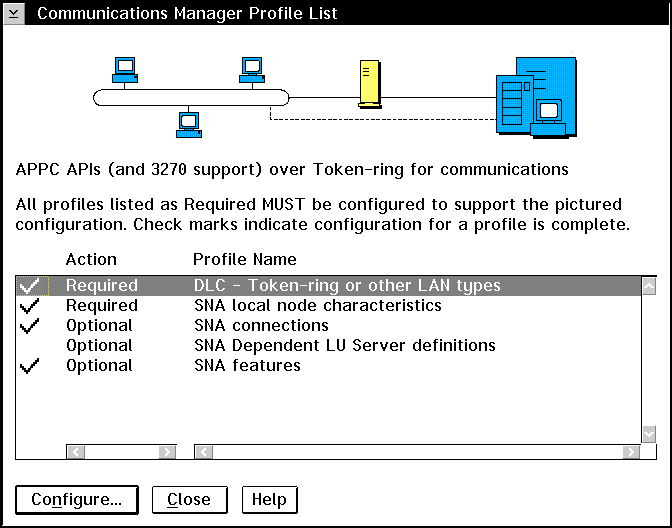
Subsequent steps begin from this panel. You will return to this
panel when each step is complete.
- LAN DLC Profile
-
From the Communications Server Profile List panel, prepare a LAN DLC
profile as follows:
- Select DLC - Token ring or other LAN
types->Configure.
- Enter your value for Network ID or C&SM LAN
ID.
- Check that the other values are appropriate for your environment.
The values in the example are default values.
- Click on OK to return to the Communications Server Profile List
panel.
- Local Node Characteristic Profile
-
Update SNA Local Node Characteristics as follows:
- On the Communications Server Profile List panel, select SNA local
node characteristics->Configure. The Local Node
Characteristic panel opens.
- Enter your value for Network ID (19).
- The Local node name was probably set when Communications Server
was installed. If you are not sure, consult your local network
administrator.
- Enter your value for Local node ID (hex) (21).
|
The first part should be filled in for you already when you display the
profile. You only need to complete the second part.
|
- Click on the Options push button. The Local Node Options
panel opens.
- Verify that the Activate Attach Manager at startup check box is
selected.
- Click on OK to return to the Local Node Characteristics
panel.
- Click on OK to return to the Communications Server Profile List
panel.
- Adapter List Profile
-
Prepare the SNA connection profiles as follows:
- From the Communications Server Profile List panel, select SNA
Connections->Configure.
- On the Connections List panel for Partner Type, select the
To peer node radio button and click on the Create push
button.
- The Adapter List window opens.
- Select the Token-ring, or other LAN types adapter type, and
specify the same adapter number that you specified in the DLC
profile.
- Click on the Continue push button to proceed to the Connection
to a Peer Node panel or the Connection to a Host panel.
- Connection to a Peer Node Profile
-
The Connection to a Peer Node or Connection to a Host Node windows
opens. At the Connection to a Peer Node panel or the Connection to Host
panel:
- Specify the Link name value that you wrote in item (15)
of the worksheet.
- On the Connection to Host panel, select Additional parameters
push button and change the Local PU name field to your value for
(20).
- Change the node ID field to your values for (21).
- Change LAN destination address field to your value for
(16).
- Change Partner network ID field to your value for
(17).
- Change Partner node name field to your value for
(18).
- Select Define Partner LUs push button on either the Connection
to a Peer Node panel or the Connection to Host panel to proceed.
- Partner LUs Profile
-
Create a Partner LUs Profile as follows:
- Enter your value for Network ID (17).
- Enter your value for LU name and Alias (use
(18)).
- Click on the Add push button to add the partner LU profile to
the connection profile.
- Click on OK to return to the previous panel.
- On the Connection to Host panel, click on the Additional
Parameters push button. The Partner LU window opens
- Mode Definition Profile
-
From the SNA Features List panel, prepare a Mode Definition as
follows:
- Select Modes->Create.
- Define your mode profile as follows:
- Enter your value for mode name (26).
- On the other lines, you can either specify values that match the mode
profile defined on your DB2RA server systems, or tune the parameters.
- Click on OK to finish the creation of the mode and to return to
the SNA Features List panel.
- CPI Communications Side Information Profile
-
On the SNA Features List panel, select CPI Communications Side
Information->Create. The CPI Communications Side
Information opens.
Complete the CPI Communications Side Information panel as follows:
- Enter your value for Symbolic destination name
(23).
- Select the Alias radio button. Click on the
Alias drop down box to view a list of all defined aliases and
choose the alias that corresponds to item (18).
- In the Partner TP box, specify the remote Transaction Program
(TP) name (24).
Select the None radio button as the Security
type.
|
This does not mean that you will have no security, you will specify the
security type later when you update the DB2 directories.
|
- Enter your value for the Mode name field (26).
- Click on OK to save the CPI side information profile and return
to the SNA Features List panel.
- Click on Close to return to the Communications Server Profile
List panel.
You need to customize the APPC configuration
for the client. The following list gives the APPC profiles that you
will need to update on your client workstation before you can access a DB2
server using APPC.
- Link Profile
- Station Profile
- Local LU Profile
- Remote LU Profile
- Mode Profile
- Symbolic Destination Profile
The following section provides a working example of the SNA configuration
on a DB2 for SINIX client to support communications with a server
workstation.
Notes:
- The values provided are for the example only; you must substitute values
that are appropriate for your operating environment.
- Get the correct values from your network administrator.
- A worksheet is available in Table 20 to assist you in gathering information.
There is one configuration file that is read by the TRANSIT Server on
startup. This configuration file has a default name of
/opt/lib/transit/KOGS/conf.nuc. The configuration
file defines the SNA resources and operating characteristics through a set of
configuration directives.
The following example is a configuration file that contains the
configuration directives.
    XLINK    tok0.001,                                        //Link name
                       ACT         = AUTO,                    //Activation
                       TYP         = LAN,                     //Connection type
                       XID         = 05D27946,                //Node ID
                       CPNAME      = CAIBMOML.OMXTXL,         //Control point
                       CONFSTR     = /opt/lib/llc2/conf.str,  //Confstr
                       DEVICE      = tr0,                     //Device
                       SSAP        = 04                       //SSAP
    XPU       JAGUAR,                                         //Station name
                       TYP         = PEER,                    //Type
                       CONNECT     = AUTO,                    //Connection setup
                       DISCNT      = AUTO,                    //Connection shutdown
                       LINK        = tok0.001,                //Link name
                       NVSCONNECT  = DYNAMIC,                 //NVS connect
                       MAXDATA     = 265,                     //Segment size
                       XID         = 05D27946,                //Node ID
                       CPNAME      = CAIBMOML.OMXTP909,       //Control point
                       ROLE        = NEG,                     //Station role
                       PAUSE       = 3,                       //Pause
                       RETRIES     = 10,                      //Retries
                       DMAC        = 10005AA8E208,            //DMAC
                       DSAP        = 04,                      //DSAP
                       RWINDOW     = 7                        //Window
    XLU       OMXTXL,                                         //Name
                       TYP         = 6,                       //LU type
                       PUCONNECT   = APHSTART,                //Connection
                       CTYP        = PUBLIC,                  //Coordinate Type
                       SESS-LMT    = 3,                       //Session limit
                       SESS-CTR    = IND,                     //Session control
                       NETNAME     = CAIBMOML.OMXTXL,         //Network name
                       PAIR        = OMXTP909 IBMRDB          //LU pair
    XRLU    OMXTP909,                                         //Remote LU name
                       NETNAME     = CAIBMOML.OMXTP909,       //Network name
                       PU          = JAGUAR                   //Station name
    XMODE     IBMRDB,                                         //Mode name
                       SESS-MAX    = 20,                      //Session Max
                       SESS-LOS    = 10,                      //Session Loser
                       SESS-WIN    = 10,                      //Session Winner
                       SESS-AUTO   = 5,                       //Session Auto
                       SRU-MAX     = 87,                      //RU size Send
                       RRU-MAX     = 87,                      //RU size Recv
                       PAC-SEND    = 4,                       //Pacing Send
                       PAC-RCV     = 4,                       //Pacing Recv
                       IDLETIME    = 0                        //Idle time
    XSYMDEST  CPICSND,                                        //SD name
                       RLU         = OMXTP909,                //RLU name
                       MODE        = IBMRDB,                  //Mode name
                       TP          = CPICRCV,                 //TP name
                       TP-TYP      = USER,                    //Type
                       SEC-TYP     = NONE                     //Security
 XEND
You need to customize the APPC configuration
for the client. The following list gives the APPC profiles that you
will need to update on your client workstation before you can access a DB2
server using APPC.
- PARTNER LU Profile
- MODE Profile
- CP Profile
- TRLINE Profile
- DLC Profile
- LU Profile
You also have to create a file containing the CPI-C side information
representing the Symbolic Destination Name.
You can use or your favorite editor to create the configuration
files.
This file must be placed in the application's path for a
standalone DB2 Connect for Solaris system. However, for DB2 agents to
be able to access it on DB2 Connect for Solaris, the file should be in
either:
- INSTHOME/sqllib/adm or
- INSTHOME/sqllib/bin
| Note: | The name of the CPIC side file must be the same as the Symbolic destination
name specified in the DB2 node directory on the DB2 Connect for Solaris
system.
|
Sample CPIC side file
The file name must be the same as the Symbolic destination name specified
in the DB2 node directory for the server.
# CPIC Side File information
#
PTNR_LU_NAME=NYX1GN01
MODE_NAME=IBMRDB
TP_NAME= NYSERVER
SECURITY=NONE
This file is called sunpu2.config, and it must be placed
in /opt/SUNWpu21, or the directory where SunLink SNA PU 2.1
Server is installed.
Figure 1. Sample Solaris PU 2.1 SNA Client Configuration File
// SunLink SunLU6.2/SunPU2.1 SNA Server Sample Configuration
// Token Ring Peer-to-Peer System A @(#)sunlu62.a.tr
//
// The physical connection is a Token Ring interface adapter.

CP      NAME=NYX2                       // Local name (8 char max)
        NQ_CP_NAME=SPIFNET.NYX12         // Network Qualified Name
        ;

TRLINE  NAME=MAC1                       // SunLink specific name
        SOURCE_ADDRESS=x'400011527509'  // sysA_mac_addr for Sun machine
        ;

DLC     NAME=HOSTLINK                   // User defined name (8 char max)
        LINK_NAME=MAC1                  // Line name this station is on
        LCLLSAP=x'04'                   // Local Link Service Access Point
        RMTLSAP=x'04'                   // Remove Link Service Access Point
        RMTMACADDR=x'40005AA8B532'      // sysB_mac_addr
        TERMID=x'07127509'              // XID negotiation
        ;

LU      NAME=NYX2GW01                   // Local name (8 char max)
        NQ_LU_NAME=SPIFNET.NYX2GW01  // Network Qualified Name
        SESS_LMT=50                     // Max LU sessions
        LUTYPE=6.2
        ;

PTNR_LU NAME=NYM2DB2                    // Partner LU name(8 char max)
        LOC_LU_NAME=NYX1GW01            // Associated Local LU
        NQ_LU_NAME=SPIFNET.NYM2DB2      // Network Qualified Name
        ;

MODE    NAME=IBMRDB                     // Mode Name (8 char max)
        DLC_NAME=HOSTLINK               // Associated DLC
        PTNR_LU_NAME=            // Associated Partner LU
        LCL_MAX_SESS_LMT=30             // Max Session Limit
        MIN_CW_SESS=15                  // Min Conwinners
        MIN_CL_SESS=15                  // Min Conlosers
        ;
|
You may need to create an entirely new
configuration file or customize an existing one. This section assumes
that you are creating a new configuration file, but if you are customizing an
existing one the steps are similar. You need to perform the following
configuration steps:
- Configure Node
- Configure Devices
- Configure Connections
- Configure Transaction Program
- Configure Partner LU
- Configure Mode
- Configure Local LU 6.2
- Configure CPI-C Side Information
To begin, perform the following steps:
- Click on the Start push button, and select
Programs->IBM Communications Server->SNA Node
Configuration.
- Select File->New to create a new configuration file,
as used in this example, or you can select File->Open to
select, open, and modify an existing configuration profile.
- Select Scenarios->CPI-C, APPC, or 5250 Emulation, or
you can select Scenarios->Advanced when creating a new
configuration file or modifying an existing one.
- Configure Node
-
To configure the node, do the following (this example is for an End
Node):
- Select the Configure Node configuration option, and click on
New. The Define The Node notebook appears.
- Complete the Basic notebook page as follows. Use the
values that you recorded on your worksheet, for example:
- Fully qualified CP name
- SPIFNET.NYX2 (19) and (20)
- CP alias
- We suggest you use NYX2, the same value as (20)
- Local Node ID
- 05D for the Block ID (the first three digits of (21)),
and 27510 for the Physical Unit ID (the last five digits of
(21)).
- Node Type
- End Node was specified in this example.
- Click on OK to save the node definition and return to the
Communications Server SNA Node Configuration window.
- Configure Devices
-
To configure devices, do the following (this example used a LAN DLC):
- Select the Configure Devices configuration option.
- Select the appropriate DLC for your environment. In this example,
LAN was used.
- Click on New. The Define a LAN Device notebook
appears.
- All the fields on the Basic notebook page were allowed to
default in this example. The same was true for the Advanced
and Performance notebook pages
- Click on OK to save the node definition and return to the
Communications Server SNA Node Configuration window.
- Configure Connections
-
To configure the LAN connection, do the following:
- Select the Configure Connections configuration option, with
your DLC also selected (LAN in this example).
- Click on New. The Define a LAN Connection notebook
appears.
- Complete this notebook page as follows. Use the values that you
recorded on your worksheet, for example:
- Link Station Name
- Use any unique and meaningful value, such as LINKNYX1.
- Device name
- Use the value that already appears. It was selected when you
configured the device in the previous step.
- Destination Address
- 40005AA8B532 (16)
- Remote SAP
- Was left to default to 04 in this example.
- Select the Security notebook tab, and set the Adjacent CP
name to SPIFNET.NYX1, corresponding to worksheet items
(17) and (13).
- Click on OK to save the connection definition and return to the
Communications Server SNA Node Configuration window.
- Configure Transaction Program
-
No action is required.
- Configure Partner LU
-
To configure the partner LU, do the following:
- Select the Configure Partner LU configuration option, and click
on New. The Define a Partner LU 6.2 notebook
appears.
- Complete the Basic notebook page as follows. Use the
values that you recorded on your worksheet, for example:
- Partner LU Name
- SPIFNET.NYX1GW01 (17) and (18)
- Partner LU Alias
- We suggest you use NYX1GW01, the same value as (18)
- Fully Qualified CP Name
- SPIFNET.NYX1 (17) and (13)
- Click on OK to save the partner LU definition and return to the
Communications Server SNA Node Configuration window.
- Configure Mode
-
To configure the mode, do the following:
- Select the Configure Mode configuration option, and click on
New. The Define a Mode notebook appears.
- Complete the Basic notebook page as follows. Use the
values that you recorded on your worksheet, for example:
- Mode name
- IBMRDB (26)
- PLU session mode limit
- Was allowed to default (32).
- Minimum contention winner sessions
- Was allowed to default (16).
- Select the Advanced notebook page. Usually all of these
values can be allowed to default. However, you may need to verify or
even change the Maximum PIU size for this workstation. For example, if
the connection to the server will use an Ethernet adapter, the maximum
Ethernet frame size is 1536 bytes, and this would require a maximum RU size no
greater than 1529 bytes.
- Click on OK to save the mode definition and return to the
Communications Server SNA Node Configuration window.
- Configure Local LU 6.2
-
To configure the local LU, do the following:
- Select the Configure Local LU 6.2 configuration option,
and click on New. The Define a Local LU 6.2 notebook
appears.
- Complete the Basic notebook page as follows. Use the
values that you recorded on your worksheet, for example:
- Local LU Name
- NYX2GW01 (27)
- Local LU alias
- We suggest you use the same value as for item (27)
- LU session limit
- Leave this set to 0 (permits up to 64K sessions)
- Click on OK to save the node definition and return to the
Communications Server SNA Node Configuration window.
- Configure CPI-C Side Information
-
To configure the CPI-C Side Information, do the following:
- Select the Configure CPI-C Side Information configuration
option, and click on New. The Define CPI-C Side Information
notebook appears.
- Complete the Basic notebook page as follows. Use the
values that you recorded on your worksheet, for example:
- Symbolic Destination Name
- NYSERVER (23)
- Mode name
- Select IBMRDB, the same value as (26)
- Use Partner LU Name or Use Partner LU Alias
-
Click the radio button that selects which of these you will use.
Either specify the fully-qualified partner LU name
SPIFNET.NYX1GW01 (the same value as worksheet item
(22)), or select the Partner LU alias that you defined earlier (the
same value as worksheet item (18) in this example).
- TP Name
- NYSERVER (24)
- Complete the Security notebook page as follows. Use the
values that you recorded on your worksheet, for example:
- Conversation Security
- Specify NONE (25)
- Click on OK to save the CPI-C Side Information definition and
return to the Communications Server SNA Node Configuration window.
To complete the configuration file, from the Communications Server SNA Node
Configuration window:
- Select File->Save As and specify the configuration
file name of your choice, for example nyserver.acg.
Indicate whether this configuration file is to become the default for this
workstation.
- Close the Communications Server SNA Node Configuration window.
- Use Start->Programs->IBM Communications
Server->SNA Node Operations to open the Communications
Server Node Operation window.
- Select Operations->Start Node->Open to
start the node with the new configuration file.
You need to customize the APPC
configuration for the client. The following list gives the APPC
profiles that you will need to update on your client workstation before you
can access a DB2 server using APPC.
- Server Properties
- Local LU Properties
- Mode Properties
- Connection Properties
- Remote LU Properties
- CPI-C Symbolic Destination Name Properties
To begin, perform the following steps:
- Click on the Start push button, and select
Program->SNA
- Double-click on the SNA Server Admin icon. The SNA
Server Admin window opens.
|
By default, the Servers and Connections window opens. If it does
not, double-click on the Servers and Connections icon.
|
- Server Properties
-
To specify parameters for an SNA Server that will be used for LU 6.2
(APPC), do the following:
- In the Servers and Connections window, select the server (named SERVER in
the example).
- Select Services->Properties. The Server
Properties window opens.
- Enter the values you filled in on Table 20 as follows:
- Network Name
- (19)
- Control Point Name
- (20)
- Local LU Properties
-
To assign a local APPC LU to the Server, perform the following steps:
- In the Servers and Connections window, select the server.
- Select Services->Assign LUs. The Insert LU
window opens.
- In the Insert LU window, select APPC (Local).
- Click on OK. The New APPC LU Properties window
opens.
- Make sure that the Independent radio button is selected.
- Enter the values you entered in on Table 20 as follows:
- LU Alias
- (27)
- Network Name
- (19)
- LU Name
- (27)
- Select the Enable Automatic Partnering check box, if it is not
already selected.
- Select the Member of Default Outgoing Local APPC LU Pool check
box, if it is not already selected.
- Click on OK. The new LU is added to the window.
- Mode Properties
-
You can use an IBM-defined mode, or add a new mode that is appropriate for
the application. Ensure that the values match between your client and
server.
To configure a mode for the APPC LU, perform the following steps:
- In the Servers and Connections window, select the local LU with which the
mode will be associated.
- Click on Services->Properties.
Based on whether the LU is local or remote, either the APPC LU Properties
window or the New APPC LU Properties window opens.
- Click on the Partners... push button. The LU
6.2 Partner LUs window opens.
- Click on the Modes... push button. The APPC Mode
Properties window opens.
- Use the following suggested value:
- Mode Name
- IBMRDB (26)
- Select the Enable Automatic Partnering check box, if it is not
already selected.
- Ensure that the High Priority Mode check box is not
selected; if it is, clear the check box.
|
The rest of the values in our example are arbitrary. The values for
items such as Parallel Session Limit and Minimum Contention
Winner Limit are for tuning purposes. See the online help for SNA
Server for guidance on setting these values.
|
- Click on the Add push button to add the mode.
- Click on the Close push buttons until you return to the APPC LU
Properties window.
- Click on the Cancel push button to return to the Servers and
Connections window.
- Connection Properties
-
To configure settings for a new connection, do the following:
- In the Servers and Connections window, select the server that you
want.
- Select Services->New Connection. The Insert
Connection window opens.
- In the Insert Connection window, select the type of connection you
want. Our example uses 802.2. See the online
help for information on the other available choices.
- Click on OK. The Connection Properties window
opens. Use the following values:
- Connection Name
- LINKNYX1 (15)
- Link Service
- SnaDlc1
- Remote End
- Peer System radio button
- Activation
- On Demand radio button
- Allowed Directions
- Outgoing Calls check box.
- Click on the Setup push button.
The 802.2 Setup window opens.
- Use the following values:
- Remote Network Address
- 40005AA8B532 (16)
- Local Node ID
- 05D 27510 (21)
- Network Name
- SPIFNET (19)
- Control Point Name
- NYX1 (13)
- Click on OK to save your work and return to the Connection
Properties window.
- Click on OK.
- Remote LU Properties
-
To assign a remote APPC LU to a connection do the following:
- In the Servers and Connections window, select the connection that you
want.
- Select Services->Assign LUs. The Insert LU
window opens.
- In the Insert LU window, select APPC Remote.
- Click on OK. The New APPC Remote LU Properties window
opens.
- Fill in the values for your system. For example.
- LU Alias
- NYX1GW01
- Network name
- SPIFNET (17)
- Remote LU name
- NYX1GW01 (18)
- Make sure the Supports Parallel Sessions and the Enable
Automatic Partnering check boxes are selected.
- Click on OK.
- CPI-C Symbolic Destination Name Properties
-
To configure the properties for CPI-C, do the following:
- Select Options->CPI-C. The Configure CPI-C
Names window opens.
- Click on the Add push button. The CPI-C Symbolic
Destination Name Properties window opens.
- Use the values that you recorded on your worksheet. For
example:
- Name
- NYSERVER (23)
- SNA Service TP
- this field will be blank
- Fully Qualified
- SPIFNET.NYX1GW01(17) and (18)
- Mode Name
- IBMRDB (26)
- Conversation Security
- By default, None is selected. You will specify the
conversation security type later.
- Click on OK to save your work and return to the Connection
Properties window.
- Click on the Close push button to close the Configure CPI-C
Names window and return to the Servers and Connections window.
You must add an entry to the client's node directory
to describe the remote node.
This entry specifies the chosen alias (node_name), Symbolic
Destination Name (sym_dest_name), and the APPC security type
(security_type) that the client will use for the APPC
connection.
To catalog the APPC node, perform the following steps:
- Log on to the system as a user with System Administrative (SYSADM) or
System Controller (SYSCTRL) authority.
- If you are using a UNIX client, set up the instance environment and invoke
the DB2 command line processor. Run the start-up script as
follows:
   . INSTHOME/sqllib/db2profile    (for Bourne or Korn shell)
   source INSTHOME/sqllib/db2cshrc (for C shell)
where INSTHOME is the home directory of the instance.
- Catalog the node by entering the following commands in the command line
processor:
   catalog appc node node_name remote sym_dest_name security security_type
   terminate
For example, to catalog a remote database server with the Symbolic
Destination Name NYSERVER on the node called db2node, using
APPC Security type none, use:
   catalog appc node db2node remote NYSERVER security none
   terminate
|
If you need to change values that were set with the catalog node
command, first run the uncatalog node command in the command line
processor as follows:
uncatalog node node_name
Recatalog the node with the value that you want to use.
|
Before a client application can access a remote database, the database must
be cataloged on the server node and on any client nodes that will connect to
it. When you create a database, it is automatically cataloged on the
server with the database alias (database_alias) the same as the
database name (database_name). The information in the database
directory, along with the information in the node directory, is used on the
client to establish a connection to the remote database.
To catalog a database on the client, perform the following steps.
- Log on to the system as a user with System Administrative (SYSADM) or
System Controller (SYSCTRL) authority.
- Fill in the Your Value column in the following
worksheet.
Table 21. Worksheet: Parameter Values for Cataloging Databases
| Parameter
| Description
| Sample Value
| Your Value
|
| Database name (database_name)
| The database alias (database_alias) of the remote
database. When you create a database, it is automatically cataloged on
the server with the database alias (database_alias) the same as the
database name (database_name).
| sample
|
|
| Database alias (database_alias)
| An arbitrary local nickname for the remote database, on the
client. If you do not provide one, the default is the same as the
database name (database_name). This is the name that you use
when connecting to a database from a client.
| tor1
|
|
| Node name (node_name)
| The name of the node directory entry that describes where the database
resides. Use the same value for node name (node_name) that you
used to catalog the node in the previous step.
| db2node
|
|
- If you are using a UNIX client, set up the instance environment and invoke
the DB2 command line processor. Run the start-up script as
follows:
   . INSTHOME/sqllib/db2profile    (for Bourne or Korn shell)
   source INSTHOME/sqllib/db2cshrc (for C shell)
where INSTHOME is the home directory of the instance.
- Catalog the database by entering the following commands in the command
line processor:
   catalog database database_name as database_alias at node node_name
   terminate
For example, to catalog a remote database called sample so that
it has the alias tor1, on the node db2node, use:
   catalog database sample as tor1 at node db2node
   terminate
|
If you need to change values that were set with the catalog
database command, first run the uncatalog
database command in the command line processor as
follows:
uncatalog database database_alias
Recatalog the database with the value that you want to use.
|
When the configuration of the client is complete, use the
following steps to verify that you can access data from a remote
database:
|
You will need to connect to a remote database to test the
connection. If you do not have a database on the server, create the
sample database on the server to test the connection. Refer to the Quick Beginnings manual for more information.
|
- Start the database manager by entering the db2start command on
the server (if it was not automatically started at boot time).
- Enter the following command in the client's Command Center or command
line processor to connect the client to the remote database:
connect to database_alias user userid using password
The values for userid and password must be valid for the
system on which they are authenticated. By default, authentication
takes place on the SERVER. If the database manager is configured for
CLIENT authentication, the userid and password must be valid
on the client.
If the connection is successful, you will get a message showing the name of
the database to which you have connected. You are now able to retrieve
data from that database. For example, to retrieve a list of all the
table names listed in the system catalog table, enter the following SQL
command in the Command Center or command line processor:
"select tabname from syscat.tables"
When you are finished using the database connection, enter the connect
reset command to end the database connection.
If the connection fails, check the following
items:
At the server:
- The db2comm registry value includes the value
appc.
- The transaction program name (tpname) parameter was updated
correctly in the database manager configuration file (or the admin server
configuration file, if you are setting up the Administration Server).
- The security service was started (enter the net start
db2ntsecserver command - for Windows NT servers only).
- The database was created and cataloged properly.
- The database manager was stopped and started again (enter the
db2stop and db2start commands on the server).
|
If there are problems starting a protocol's connection managers, a
warning message is displayed and the error messages are logged in the
db2diag.log file.
Refer to the Troubleshooting Guide for information on the db2diag.log file.
|
At the client:
- The node was cataloged with the correct Symbolic Destination Name
(sym_dest_name).
- The node name (node_name), specified in the database directory,
points to the correct entry in the node directory.
- The database was cataloged properly, using the server's
database alias (database_alias) that was cataloged when the database
was created on the server, as the database name (database_name) on
the client.
After you verify these items, refer to the Troubleshooting Guide if the connection still fails.
[ Top of Page | Previous Page | Next Page | Table of Contents | Index ]
[ DB2 List of Books |
Search the DB2 Books ]