
Installing and Configuring DB2 Clients
This section contains the information you need to install
the DB2 Client Application Enabler or the DB2 Software Developer's Kit on
Windows 32-bit operating systems.
To install a DB2 Client Application Enabler or DB2 Software
Developer's Kit:
- Log on as a local Administrator.
- Shut down any other programs so that the setup program can update files as
required.
- Insert the appropriate CD-ROM into the drive:
- To install the DB2 Client Application Enabler, use the DB2 Client Application Enablers CD-ROM.
- To install the DB2 Software Developer's Kit, use the Application
Developer's Kit CD-ROM.

|
To manually invoke the setup program, do the following:
- Click on Start and select the Run option.
- Type the following in the Open field:
x:\setup /i language
where:
- x: represents your CD-ROM drive
- language represents the two-character country code for your
language (for example, EN for English). Table 23 lists the code for each available language.
- Click on OK.
|
- The Welcome window opens.
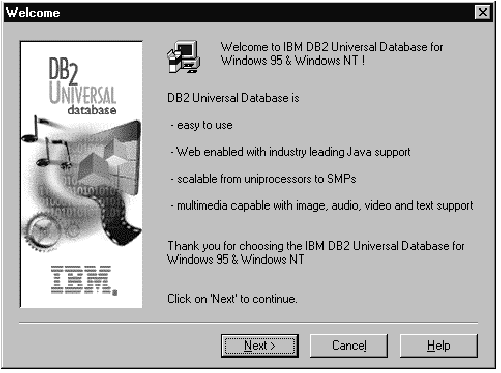
Click on the Next push button to continue.
- The Enable Remote Administration window opens. Select the
Install components required to administer remote servers check box
if you would like to administer remote servers from this client. Click
on the Next push button.
- Select the installation type you prefer:

| Typical Install: Installs those DB2 components that are
used most often, including all required components, ODBC support,
documentation, and commonly used DB2 tools such as the Client Configuration
Assistant and the Information Center. A DB2 instance is created.
|
|
|

| Compact Install: Installs only the required DB2
components and ODBC support. A DB2 instance is created.
|
|
|

| Custom Install: Installs only those components that you
select. A DB2 instance is created.
|
- Respond to the setup program's prompts. Online help is
available to guide you through the remaining steps. Invoke online help
by clicking on the Help push button at any time.
You can click on the Cancel push button at any time to end the
installation.
- After you install the product, you must reboot before you can begin to use
it. Select a reboot option and click on the Finish push
button. This completes the installation.
The installation program has:
- Created DB2 program groups and items (or shortcuts).
- Updated the Windows registry.
- Created a default client instance called DB2.
- Registered a security service.
[ Top of Page | Previous Page | Next Page | Table of Contents | Index ]
[ DB2 List of Books |
Search the DB2 Books ]
