
Quick Beginnings for DB2 Connect Enterprise Edition
You can define the properties of your SNA connections in the Microsoft
SNA Server Manager. To access the manager, click on the Windows NT
Start button, then select Programs->Microsoft SNA Server->Manager.
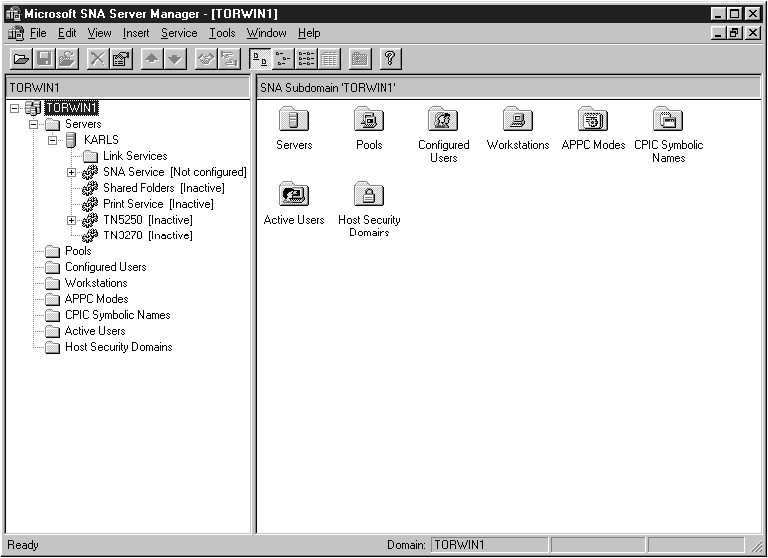
The Microsoft SNA Server Manager uses an interface similar to that of the
Windows NT Explorer. Figure 13 shows the interface. There are two panes in the main
window of the Manager. All the configuration options we will be using
can be accessed by clicking the right mouse button on objects in the left-hand
pane of the window. Every object has a context menu that you
can access by right-clicking on the object.
Figure 13. The Microsoft SNA Server Manager.
The first step to configuring Microsoft SNA Server for DB2 Connect is
to define the correct Control Point Name for your NT Server. Do the
following:
- Right-click on SNA Service and select Properties. The Properties
dialog box appears.
- Enter the correct NETID (9) and Control Point
Name (4) in the corresponding fields of the dialog box.
- Click OK to accept the changes.
Your next step is to set the properties of the link server.
Perform the following steps:
- Open the Servers folder in the left pane of the Manager by clicking the
mouse on the plus sign next to the Server folder icon.
- Click the right mouse button (right-click) on the server icon nested
underneath the Servers folder.
- Select Insert->Link Service. The Insert Link Service pop-up window
appears.
- Select DLC 802 2 Link Service. Press Add, then Finish.
To specify the type of connection DB2 Connect will be using, do the
following:
- Right-click on SNA Service and select
Insert->Connection->802.2. The Connection Properties
dialog box appears.
- Under the General tab, enter a connection name (7) in
the Name field.
- Choose the Link Service Type (SnaDlc1).
- Set the Remote End radio button to Host
System.
- Set the Allowed Directions radio button to Both
Directions.
- Set the Activation radio button to On Server
Startup.
- Select the Address tab and fill in the Remote Network
Address (8) field. Accept the default numbers in the other
fields.
- Select the System Identification tab. Enter the
following information
- For the Local Node Name, add the NETID (1),
the Control Point Name (4), and the Local Node ID
((13) plus (14)). Accept the XID Type
default.
- For the Remote Node Name, add the NETID (1)
and the Control Point Name (4). Accept the other
defaults
- Click OK to exit.
To define the properties of the Local LU, do the following:
- Right-click on SNA Service and select Insert->APPC->Local
Lu. The Local APPC LU Properties dialog box appears.
- Under the General tab, enter the following information:
- The LU Alias (12).
- The NETID (9).
- The LU Name (11).
- Select the Advanced tab, and select Member of Default
Outgoing Local APPC LU Pool. Accept the other defaults.
- Click OK to exit.
To define the properties of the Remote LU, do the following:
- Right-click on SNA Services and select Insert->APPC->Remote
LU.
- Under the General tab, select Connection and enter
the LU Alias (2). The other fields will be filled in
by the program.
| Note: | If your LU alias is not the same as your LU Name, make sure you specify the
LU Name in the appropriate field. The program will fill it in
automatically, but it will be incorrect if the alias and the name are not the
same.
|
- Click OK to exit.
To define the properties of the APPC Mode, do the following:
- Right-click on the APPC Modes folder icon, and select
Insert->APPC->Mode Definition.
- Under the General tab, enter the Mode Name
(6).
- Select the Limits tab, and enter appropriate numbers for the
Parallel Session Limit (eg. 30) and Minimum Contention
Winner Limit (eg. 15). Your Host-Side or LAN administrator
should be able to supply you with the numbers if you do not know the limits
you should place here.
- Accept the other defaults, and click OK to exit.
To define the properties of the CPIC Name, do the following:
- Right-click on CPIC Symbolic Name and select Insert->APPC->CPIC
Symbolic Name. The CPIC Name Properties dialog box
appears.
- Under the General tab, enter the Symbolic Destination Name
(16) in the Name field. Select a Mode Name
of IBMRDB. Accept the other defaults.
- Select the Partner Information tab.
- Under Partner TP Name, select the SNA Service TP (in
hex) radio button.
- Under Partner LU Name, select Fully Qualified and
enter the fully-qualified Partner LU Name ((1) and (2)) or
alias.
- Click OK to exit.
[ Top of Page | Previous Page | Next Page | Table of Contents | Index ]
[ DB2 List of Books |
Search the DB2 Books ]