
Quick Beginnings for DB2 Connect Enterprise Edition
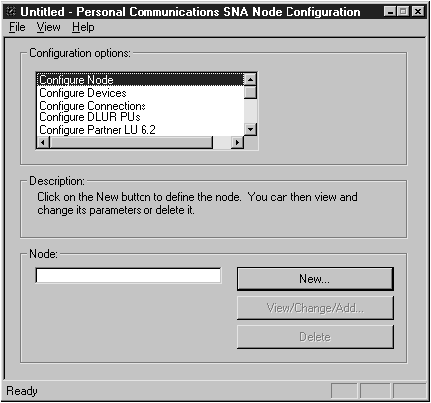
To start IBM Personal Communications, click on the Start
button, then select Programs->IBM Communications
Server->SNA Node Configuration. The IBM Personal
Communications SNA Node Configuration screen appears.
From the File button on the menu bar, select
New. The Define the Node field appears.
To configure the DB2 Connect workstation, you need to configure the
following Configuration options:
After each step, you return to the window that has the Configuration
options field.
Figure 12. Configuration Screen for Personal Communications.
To configure the node:
- In the Configuration options field, select Configure
Node, then click on the New button. The Define the
Node window appears.
- In the Fully qualified CP name fields, type in the network name
(9) and the local control point name (10)
(SPIFNET.NYX1).
- Optionally, in the CP alias field, type in a CP alias.
If you leave this blank the local control point name (10) will be used
(NYX1).
- In the Local Node ID fields, type in the block ID (13)
and the physical unit ID (14) (05D 27509).
- Click on OK.
To configure the device:
- In the Configuration options field, select Configure
devices.
- Ensure that in the DLCs field, the appropriate DLC is
highlighted. For example, LAN.
- Click on the New button. The appropriate window appears
with default values displayed. For example, the Define a LAN device
window.
- Click on OK to accept the default values.
To configure the connections:
- In the Configuration options field, select Configure
connections.
- Ensure that in the DLCs field, LAN is
highlighted.
- Click on the New button. The Define a LAN connection
window appears.
- On the Basic tab panel:
- In the Link station name field, type in the name (7)
from the worksheet (LINKHOST).
- In the Destination address field, type in the address
(8) from the worksheet (400009451902).
- On the Adjacent Node tab panel:
- In the Adjacent CP name fields, type in the network ID
(3) and the Control Point name (4)
(SPIFNET.NYX).
- In the Adjacent CP type field, select Back-level
LEN.
- Ensure that TG number is set to 0 (the
default).
- Click on OK.
To configure the partner LU:
- In the Configuration options field, select Configure
partner LU, then click on the New button. The Define a
partner LU 6.2 window appears.
- In the Partner LU name fields, type in the network ID
(3) and the partner LU name (2)
(SPIFNET.NYM2DB2).
- In the Partner LU alias field, type in the partner LU name
(2) from the worksheet (NYM2DB2).
- In the Fully-qualified CP name fields, type in the network ID
(3) and the adjacent control point SSCP name (4)
(SPIFNET.NYX).
Accept the defaults in the Advanced tab panel.
- Click on OK.
To configure the mode:
- In the Configuration options field, select Configure
modes, then click on the New button. The Define a mode
window appears.
- In the Mode name field (6) of the Basic tab panel, type
in the mode name (IBMRDB).
- Click on the Advanced tab and ensure that the Class of
Service Name is set to #CONNECT.
Accept the defaults for the other fields.
- Click on OK.
To configure the local LU 6.2:
- In the Configuration options field, select Configure local
LU 6.2, then click on the New button. The
Define a local LU 6.2 window appears.
- In the Local LU name field, type in the name (11) from
the worksheet (NYX1GW01).
- Type in a value for the LU session limit field. The
default, 0, specifies the maximum allowed value.
Accept the defaults for the other fields.
- Click on OK.
To configure the CPI-C side information:
- In the Configuration options field, select Configure CPI-C
side information, then click on the New button. The
Define CPI-C side information window appears.
- In the Symbolic destination name field, type in the name
(16) from the worksheet (DB2CPIC).
- In the Mode name field, type in the name (15) from the
worksheet (IBMRDB).
- In the Partner LU Name fields, type the Net ID (3) in
the first field, and the Partner LU Name (2) (SPIFNET.NYM2DB2)
in the second field.
- Specify the TP name. In the TP name field:
- To specify a non-service TP, in the TP name field, type in the
name of the non-service TP, for example DB2DRDA, and ensure that
there is no check mark in the Service TP check
box.
- To specify a service TP, in the TP name field, type in the name
of the service TP, for example 076DB, and ensure that there
is a check mark in the Service TP check box.
Accept the defaults for the other fields.
- Click on OK.
You need to configure Transaction Programs if you want
Communications Server to accept APPC clients. For DB2 users, examples
of this include:
- Configuring Communications Server to accept SNA Client requests as
described in Chapter 15. Configuring IBM Communications Server for Windows NT SNA Client.
- Configuring a DB2 Universal Database server to act as a DRDA AS, which
accepts requests from DRDA hosts. (This does not apply to DB2 Connect
users).
- Configuring a DB2 Universal Database server to accept DB2 client
connections via the APPC protocol.
To create an Application Transaction Program:
- In the Configuration options field, select Configure
Transaction Programs, then click on the New button.
The Define a Transaction Program window appears.
- On the Basic tab window:
- In the TP name field, type in the name (17) from the
worksheet (DB2DRDA).
- Ensure that there is no check mark in the Service TP
check box.
Accept the defaults for the fields in the Advanced tab panel.
- Click on OK.
To save the configuration:
- From the File button on the menu bar, select Save
As. The Save As window appears.
- Type in a file name, for example ny3.acg, then click on
OK.
- In the dialog box that appears, you are asked if you want this
configuration to be the default. Click on the Yes
button.
IBM Personal Communications uses an environment variable called
appcllu to communicate with DB2. You may set this variable
on a per-session basis by opening a command window and typing set
appcllu=local_lu_name, however you will probably find it more
convenient to permanently set the variable. In order to permanently set
the variable in Windows NT, do the following:
- Click the Start button and choose
Settings->Control Panel. Double-click on the
System icon. When the System Properties window
appears, select the Environment tab.
- Type appcllu in the Variable field, and type your
local LU name (11) in the Value field.
- Click Set to accept the changes then click OK to
exit the System Properties window.
The environment variable will now remain set for future sessions.
[ Top of Page | Previous Page | Next Page | Table of Contents | Index ]
[ DB2 List of Books |
Search the DB2 Books ]
